
Configuration files for my personal NVIM setup
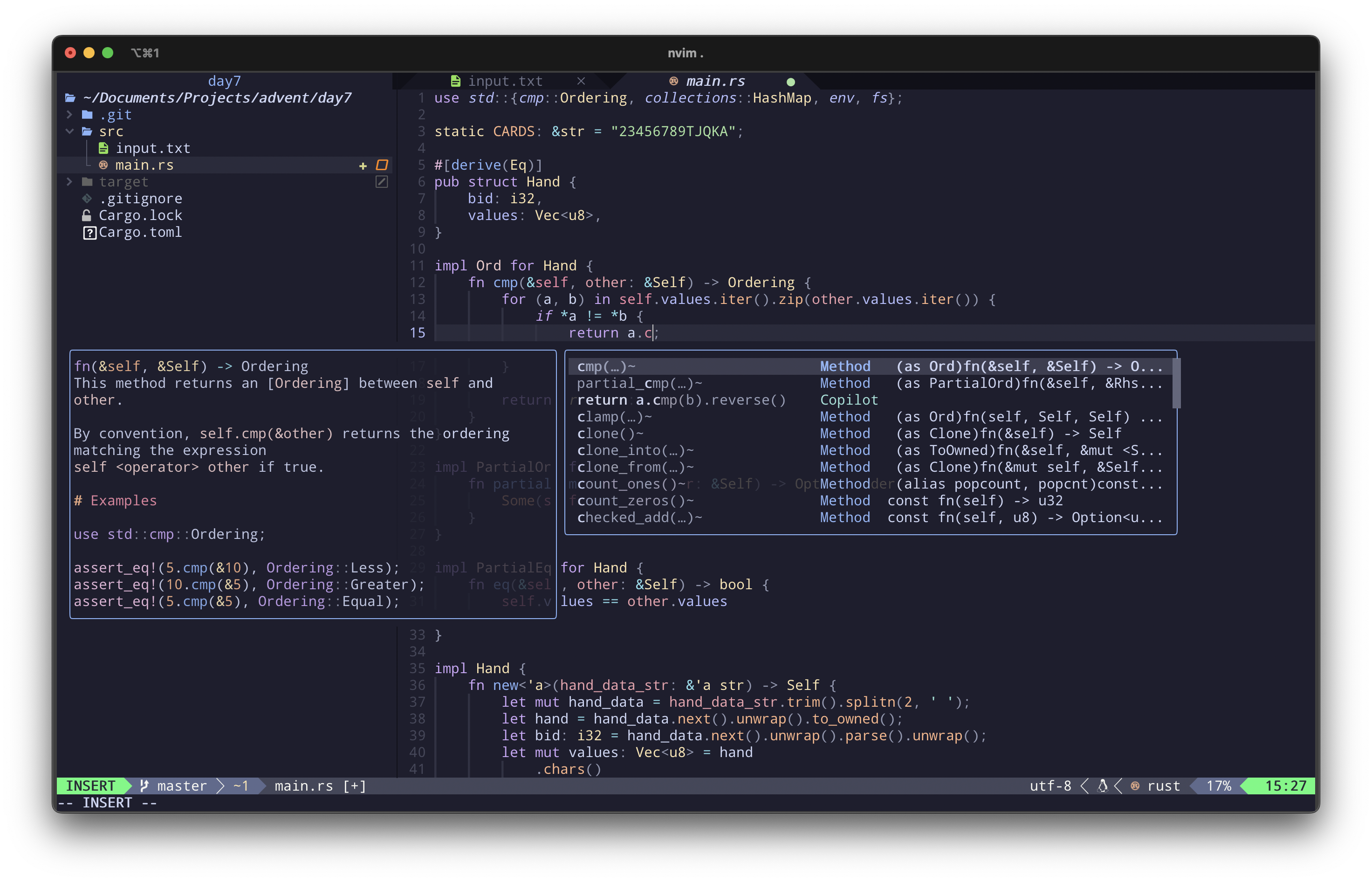
Inspired by @typecraft
Old screenshot, need to update it
This is an attempt at making my own NVIM configuration. My goal is to be able to install this configuration on any machine in place of an IDE, without the hassle of manual configuration. The project is actively in development, but most of the essential IDE features are already present, making it more than suitable for regular use.
You may notice this project is lacking in documentation. I hope to change that soon, but for the time being, you'll find most user-customizable options, keybinds, and utilities conveniently (dis)organized under lua/custom/.
Suggestions and contributions are always welcome! If you'd like to propose improvements or notice any issues, please create a GitHub issue. Keep in mind that since this primarily a personal project, very specific feature requests like "add the glorb theme" or "right-justify the tabs in the bufferline" may not be prioritized unless they enhance the overall configurability or align with common best practices.
Feel free to read through these first, but they are all included in the installation section through relative links
Terminal Emulator Compatibility
It is important to note that many default terminal emulators are simply not compatible with NVIM. This is often the case with older terminal emulators that do not implement some of the advanced features NVIM requires. One of the most notable of these is the MacOS default Terminal application. Compatibility with NVIM can be checked with a simple Google search, but I have listed a few popular ones I am familiar with.
I recommend finding a third-party terminal emulator that supports advanced terminal color features. I use iTerm2 which is exclusive to MacOS, but Kitty and Alacritty work well, and are also available on Windows and Linux. On Windows, I use Windows Terminal app (wt.exe) for both PowerShell and WSL-Bash.
Shell Compatibility
NVIM is advertised to work with most shells, but I have listed a few popular ones I have tested my config with as well as the machines I used.
NVIM Installation
I am running NVIM v0.11.0, but this config should work on >=0.10.0.
To install Neovim, you can:
- install from pre-built package on the official Releases page (use latest stable release)
- install from source following the official Build page
- install using system package manager (recommended for non-linux users)...
Valid package managers for installing NVIM include:
| OS | Source |
|---|---|
| MacOS | Homebrew - brew install neovim |
| Windows 10/11 | Scoop - scoop install main/neovim or Chocolatey - choco install neovim |
| Linux/WSL | Generally better to avoid using a PM * |
* Linux package managers like apt, yum, yay, and nix frequently provide outdated versions of NVIM (<0.10.0). It is highly advised for Linux users to follow one of the other installation methods above.
Nerd Font Installation
Install a Nerd Font typeface on your terminal emulator. Without a nerd font typeface, many of the niche symbols used in NVIM will likely not display correctly.
My go-to is JetBrainsMono Nerd Font (download link), but you can find others at nerdfonts.com/font-downloads.
Required Dependencies
Each of these dependencies must be installed on-device for full functionality of the NVIM configuration.
| Program | Version | Notes |
|---|---|---|
| Neovim | >= 0.10.0 | needs to be built with LuaJIT See NVIM Installation for help installing |
| Git | >= 2.19.0 | for partial clones support |
| NPM | recent | for language servers |
| fd | recent | for Telescope and potentially other plugins
|
| ripgrep | recent | for Telescope and potentially other plugins
|
| C compiler & libstdc++ | recent | for Treesitter and potentially other plugins e.g., install GCC:
|
The following are optional.
| Program | Notes |
|---|---|
| GitHub CLI | Hover context for assigned TODO's, issues, and PR's. |
| Jira CLI | Hover context for Jira issues |
If you are new to Neovim, read the info on Tested and Recommended Terminal Emulators, as not all terminal apps will work.
I presume your terminal has a shell (lol), but feel free to glance through the info on Shell Compatibility if you are unsure of whether it is compatible, or are deciding what shell to use for your device.
Before you install the NVIM configuration files:
- Install a Nerd Font Typeface -- surprisingly important
- Install All Required Dependencies -- includes info on installing NVIM
This step is different depending on your operating system...
First, save a backup of your previous NVIM configuration if desired. Then delete the configuration directory if it exists, with:
rm -rf ~/.config/nvimNow you can download the repository.
git clone https://github.com/N8WM/nvim-config.git ~/.config/nvimFirst, save a backup of your previous NVIM configuration if desired. Then delete the configuration directory if it exists, with:
rm -r -fo ~\AppData\Local\nvimNow you can download the repository.
git clone https://github.com/N8WM/nvim-config.git ~\AppData\Local\nvimThe first time running nvim after this command should install all dependencies and packages. If you have GitHub Copilot, the only thing left to do is to register your account (if you have one) with the command :Copilot auth with NVIM running. Other than that, the installation should be complete.
- Set up nvim-dap, an NVIM debugging tool
- Implement
pcall(...)around eachrequire
(to prevent unwanted error propagation) - Add documentation for keybinds, options, configuration
- Refactor! :/