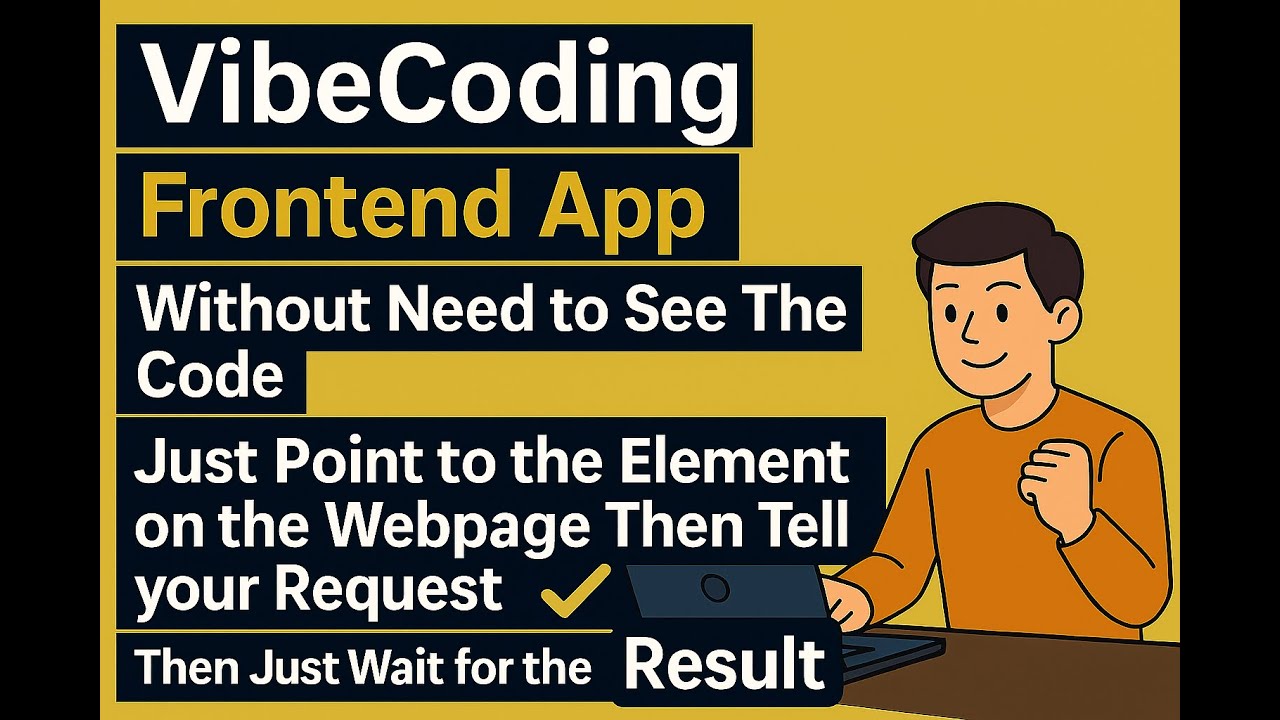
📺 Watch the Tutorial Video - See InstantCode in action!
After installing the plugin, you can:
- Point directly at any element on your webapp
- Type a short request like "make it bigger", "center it", "change color to blue"
- Wait for AI to modify your code - it automatically finds and updates the source files
- See instant results - your changes appear immediately in the browser
Save cognitive load, because it's precious.
InstantCode requires Claude Code to provide AI assistance:
# Install Claude Code globally
bun install -g @anthropic-ai/claude-code

# Verify installation
claude --versionThe fastest way to get started is using our Vite plugin. This automatically handles everything for you!
bun add -d instantcodeAdd the plugin to your vite.config.ts:
import { defineConfig } from 'vite';
import inspectorPlugin from 'instantcode/vite-plugin';

export default defineConfig({
  plugins: [
    inspectorPlugin(),
  ],
});bun devThat's it! The InstantCode toolbar will automatically appear in your application and ready to use.
The Vite plugin accepts these options:
inspectorPlugin({
  port: 7318,
  verbose: false,
})InstantCode works with all Vite-supported frameworks:
- ⚛️ React - Detects components, props, and state
- 🟢 Vue - Understands composition/options API
🅰️ Angular - Recognizes components and directives- 🟠 Svelte - Identifies components and stores
- 📄 Vanilla JS - Works with plain HTML/CSS/JS
Want your entire team to modify the app? Or let users customize the app themselves? Run InstantCode on a server!
inspectorPlugin({
  port: 7318,                            // Port to run server on (default: 7318)
  listenAddress: '0.0.0.0',              // Used for socket connection between the toolbar and the server
  publicAddress: 'https://ai.example.com', // Used to serve the inspector-toolbar.js file
  verbose: false,                        // Enable detailed logging (default: false)
})
How it works:
listenAddress: '0.0.0.0'- Makes the InstantCode server accessible from any networkpublicAddress- The URL where your team accesses the inspector toolbar
Example Setup for Team Access:
// Deploy your app on a server at https://myapp.com
// Configure InstantCode to be accessible:
inspectorPlugin({
  listenAddress: '0.0.0.0',              // Accept connections from team members
  publicAddress: 'https://myapp.com:7318' // Where the toolbar connects
})
Now anyone on your team can:
- Open the app at
https://myapp.com - Use the InstantCode toolbar to modify the UI
- Changes are saved directly to the server's source files
- Everyone sees updates in real-time!
If you prefer manual control or aren't using Vite:
# Navigate to your project directory first (important for context!)
cd /path/to/your/project

# Start the server (basic)
bunx instantcode@latest

# With custom port
bunx instantcode --port 8080

# Listen on all interfaces (for team access)
bunx instantcode --listen 0.0.0.0

# Use with reverse proxy
bunx instantcode --listen localhost --public-address https://ai.example.com

# Enable verbose logging
bunx instantcode --verbose-p, --port <number>- Port to run server on (default: 7318)-l, --listen <address>- Address to bind server to (default: localhost)-a, --public-address <url>- Public URL for reverse proxy scenarios-V, --verbose- Enable verbose logging-h, --help- Show help message-v, --version- Show version
Add to your HTML:
<!-- Default setup -->
<script src="http://localhost:7318/inspector-toolbar.js"></script>

<!-- With custom port -->
<script src="http://localhost:8080/inspector-toolbar.js"></script>

<!-- With reverse proxy -->
<script src="https://ai.yourdomain.com/inspector-toolbar.js"></script>
Happy coding! 🚀 and save your precious cognitive load.