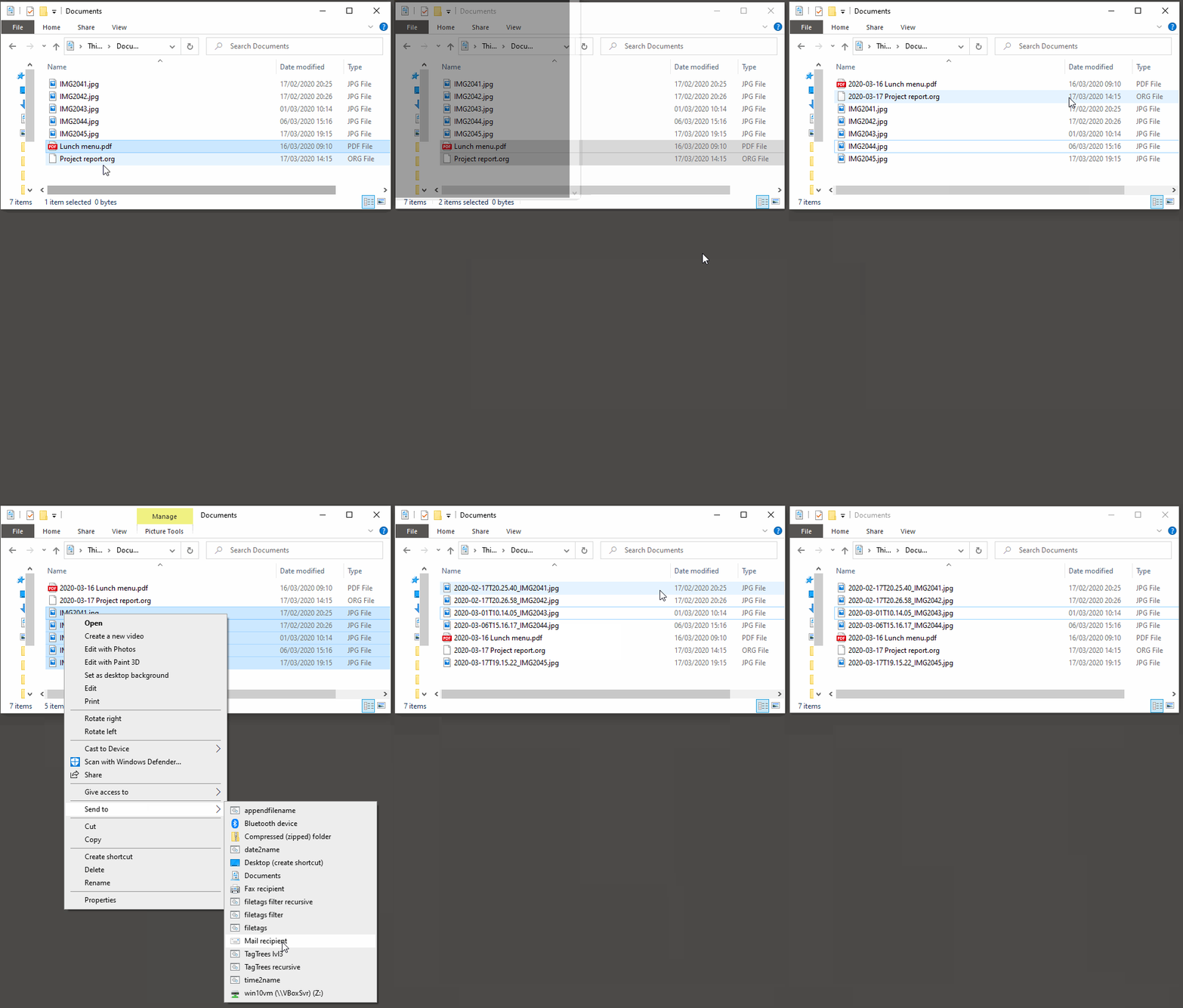

Per default, date2name gets the modification time of matching files and directories and adds a datestamp in standard ISO 8601+ format YYYY-MM-DD (http://datestamps.org/index.shtml) at the beginning of the file- or directoryname.
If an existing timestamp is found, its style will be converted to the selected ISO datestamp format but the numbers stays the same. Executed with an examplefilename “file” this results e.g. in “2008-12-31_file”.
Note: Other that defined in ISO 8601+ the delimiter between hours, minutes, and seconds is not a colon but a dot. Colons are causing several problems on different file systems and are there fore replaced with the (older) DIN 5008 version with dots.
Usage:
         date2name [options] file ...
Run “date2name –help” for usage hints such as:
Options:
  -h, --help         show the extended help message and exit
  -d, --directories  modify only directory names
  -f, --files        modify only file names
  -S, --short        use short datestamp               (YYMMDD)
  -C, --compact      use compact datestamp             (YYYYMMDD)
  -M, --month        use datestamp with year and month (YYYY-MM)
  -w, --withtime     use datestamp including seconds   (YYYY-MM-DDThh.mm.ss)
  -r, --remove       remove all known datestamps
  -m, --mtime        take modification time for datestamp [default]
  -c, --ctime        take creation time for datestamp
  --delimiter        overwrite default delimiter
  --nocorrections    do not convert existing datestamps to new format
  -q, --quiet        do not output anything but just errors on console
  -v, --verbose      enable verbose mode
  -s, --dryrun       enable dryrun mode: just simulate what would happen, do
                     not modify files or directories
  --version          display version and exit
First, you need the programming platform Python installed.
Then, you can
- get
date2namemanually from GitHub OR - install it via
pip install date2namewhich is simplest method.

The easiest way to integrate date2name into File Explorer (“Send to”
context menu) is by using integratethis.
Execute this in your command line environment:
pip install date2name integratethis
integratethis date2name
integratethis time2name
Use this only if the integratethis method can not be applied:
Create a registry file add_date2name_to_context_menu.reg and edit it
to meet the following template. Please make sure to replace the paths
(python, USERNAME and date2name.py) accordingly:
Windows Registry Editor Version 5.00

;; for files:

[HKEY_CLASSES_ROOT\*\shell\date2name]
@="date2name (single file)"

[HKEY_CLASSES_ROOT\*\shell\date2name\command]
@="C:\\Python36\\python.exe C:\\Users\\USERNAME\\src\\date2name\\date2name.py -i \"%1\""
Execute the reg-file, confirm the warnings (you are modifying your Windows registry after all) and cheer up when you notice “date2name (single file)” in the context menu of your Windows Explorer.
As the heading and the link name suggests: this method works on single files. So if you select three files and invoke this context menu item, you will get three different filetag-windows to tag one file each.
Thunar is a popular GNU/Linux file browser for the xfce environment.
Unfortunately, it is rather complicated to add custom commands to Thunar. I found a good description which you might want to follow.
To my disappoinment, even this manual confguration is not stable
somehow. From time to time, the IDs of $HOME/.config/Thunar/uca.xml
and $HOME/.config/Thunar/accels.scm differ.
For people using Org-mode, I automated the updating process (not the initial adding process) to match IDs again:
Script for checking “tag”: do it tag-ID and path in accels.scm match?
#+BEGIN_SRC sh :var myname="tag"
ID=`egrep -A 2 "<name>$myname" $HOME/.config/Thunar/uca.xml | grep unique-id | sed 's#.*<unique-id>##' | sed 's#<.*$##'`
echo "$myname-ID of uca.xml: $ID"
echo "In accels.scm: "`grep -i "$ID" $HOME/.config/Thunar/accels.scm`
#+END_SRC
If they don’t match, following script re-writes accels.scm with the current ID:
#+BEGIN_SRC sh :var myname="tag" :var myshortcut="<Alt>t"
ID=`egrep -A 2 "<name>$myname" $HOME/.config/Thunar/uca.xml | grep unique-id | sed 's#.*<unique-id>##' | sed 's#<.*$##'`
echo "appending $myname-ID of uca.xml to accels.scm: $ID"
mv $HOME/.config/Thunar/accels.scm $HOME/.config/Thunar/accels.scm.OLD
grep -v "\"$myshortcut\"" $HOME/.config/Thunar/accels.scm.OLD > $HOME/.config/Thunar/accels.scm
rm $HOME/.config/Thunar/accels.scm.OLD
echo "(gtk_accel_path \"<Actions>/ThunarActions/uca-action-$ID\" \"$myshortcut\")" >> $HOME/.config/Thunar/accels.scm
#+END_SRC
FreeCommander is a orthodox file manager for Windows. You can add date2name as an favorite command:
- Tools → Favorite tools → Favorite tools edit… (S-C-y)
- Create new toolbar (if none is present)
- Icon for “Add new item”
- Name: date2name
- Program or folder: <Path to date2name.bar>
date2name.batlooks like: (please do modify the paths to meet your requirement)C:\Python36\python.exe C:\Users\YOURUSERNAME\src\date2name\date2name %* REM optionally: set /p DUMMY=Hit ENTER to continue...- Start folder:
%ActivDir% - Parameter:
%ActivSel% - [X] Enclose each selected item with
" - Hotkey: select next available one such as
Ctrl-1(it gets overwritten below)
- Start folder:
- remember its name such as “Favorite tool 01”
- OK
So far, we’ve got date2name added as a favorite command which can be
accessed via menu or icon toolbar and the selected keyboard shortcut.
If you want to assign a different keyboard shortcut than Ctrl-1 like
Alt-d you might as well follow following procedure:
- Tools → Define keyboard shortcuts…
- Scroll down to the last section “Favorite tools”
- locate the name such as “Favorite tool 01”
- Define your shortcut of choice like
Alt-din the right hand side of the window- If your shortcut is taken, you’ll get a notification. Don’t overwrite essential shortcuts you’re using.
- OK
This tool is part of a tool-set which I use to manage my digital files such as photographs. My work-flows are described in this blog posting you might like to read and in the video which is linked above.
In short:
- For tagging, please refer to filetags and its documentation. It’s the most important part of the whole concept on how I manage files.
- See date2name for easily adding ISO time-stamps or date-stamps to files.
- For easily naming and tagging files within file browsers that allow integration of external tools, see appendfilename (once more) and filetags.
- Moving to the archive folders is done using move2archive.
- Naming files is tedious. Therefore, I wrote guessfilename: Python-script, guesses according to file name, optional PDF content, optional video json metadata.
- Having tagged photographs gives you many advantages. For example, I automatically choose my desktop background image according to the current season.
- Files containing an ISO time/date-stamp gets indexed by the filename-module of Memacs.
- Alternative implementations of the
filetagsconcept:- GitHub - DerBeutlin/filetags.el: Emacs package to manage filetags in the filename
- With denote, Protesilaos Stavrou implemented a conceptually related approach to manage notes within an Emacs buffer. With Emacs/dired, this method equally may be applied on files, too.
- Related to
date2name:- https://github.com/DerBeutlin/date2name.el Alternative implementation for Emacs/dired
- https://github.com/muehlburger/d2n Alternative implementation in Go
- Related to
m2a: - Related to
guessfilename:- Jonas Sjöberg took my idea and developed the much more advanced (and thus a bit more complicated) autonameow. It uses rule-based renaming, analyzes content of plain text, epub, pdf and rtf files, extracts meta-data from many different file formats via exiftool and so forth.
- This reddit thread brought me to fs-curator whose documentation looks promising. I did not test it and it’s still in an early stage. However, it could be a future user-friendly part of a workflow that watches folders for file changes and applies processes like guessfilename.
- I you don’t need the full power of a programming language, organize might do the trick for you. Instead of coding Python, you define your rules within a text file. For many people, this may seem more user friendly.
- A research platform for testing file-tagging on all platforms: tagstore
- This happens to be an important part of my PhD thesis in PIM.
- Not maintained since 2013 any more but surely still a cool starting point in case you want to get a flexible tool when doing research with tagging interfaces.
- Good resources for tagging software in general
- What’s the Best Software for Tagging Files? | TurboFuture
- “Marktübersicht von Tagging-Werkzeugen und Vergleich mit tagstore” (German, 2013): linked on this page of the tagstore project
- If you do like filetags but you prefer the syntax of TagSpaces for adding tags to file names, you should check out this filetags fork. Maintenance is limited though. Please notice that my other tools working with tags do not support TagSpaces-style either.
- https://forge.chapril.org/tykayn/rangement.git
- An NPM implementation of a subset of GuessFileName (using image exif header), append2name, move2archive
- You probably need to read a bit of French
I’m glad if you like my tool. I’ve got way more projects on:
- GitHub (oldest projects),
- GitLab.com (older projects), and
- Codeberg (newest projects).
If you want to support me:
- Send old-fashioned postcard per snailmail - I love personal feedback!
- see my address
- Send feature wishes or improvements as an issue
- Create issues for bugs
- Contribute merge requests for bug fixes
- Check out my other cool projects on the platforms above
If you want to contribute to this cool project, please fork and contribute!
I am using Python PEP8 and occasionally some ideas from Test Driven Development (TDD). I fancy Python3 with type annotations, although I’m not using them everywhere at the moment. Starting with 2025, I began to use help from Claude.ai which is a huge improvement, given my lack of programming practice and knowledge.
After all, each of my tools was developed because I needed its functionality and could not get it elsewhere - at least to my knowledge or taste.