-
Notifications
You must be signed in to change notification settings - Fork 6
docs: Revamped GitHub SSO doc #72
New issue
Have a question about this project? Sign up for a free GitHub account to open an issue and contact its maintainers and the community.
By clicking “Sign up for GitHub”, you agree to our terms of service and privacy statement. We’ll occasionally send you account related emails.
Already on GitHub? Sign in to your account
Merged
Merged
Changes from all commits
Commits
Show all changes
8 commits
Select commit
Hold shift + click to select a range
84855ea
Initial draft of GitHub SSO
bharathvaj-p 946cbc9
Made changes to the doc
bharathvaj-p fea5dec
Fixed the review comments
bharathvaj-p 3ba4e54
Replaced the GIF
bharathvaj-p ac18237
Fixed the review comments
bharathvaj-p 00a37a5
Made a change in formatting
bharathvaj-p 0b23ea0
Fixed review comments
bharathvaj-p 5585be2
Fixed review comments
bharathvaj-p File filter
Filter by extension
Conversations
Failed to load comments.
Loading
Jump to
Jump to file
Failed to load files.
Loading
Diff view
Diff view
There are no files selected for viewing
81 changes: 66 additions & 15 deletions
81
docs/user-guide/global-configurations/authorization/sso/github.md
This file contains hidden or bidirectional Unicode text that may be interpreted or compiled differently than what appears below. To review, open the file in an editor that reveals hidden Unicode characters.
Learn more about bidirectional Unicode characters
| Original file line number | Diff line number | Diff line change |
|---|---|---|
| @@ -1,37 +1,88 @@ | ||
| # GitHub | ||
|
|
||
| ## Sample Configuration | ||
| ## Introduction | ||
|
|
||
| 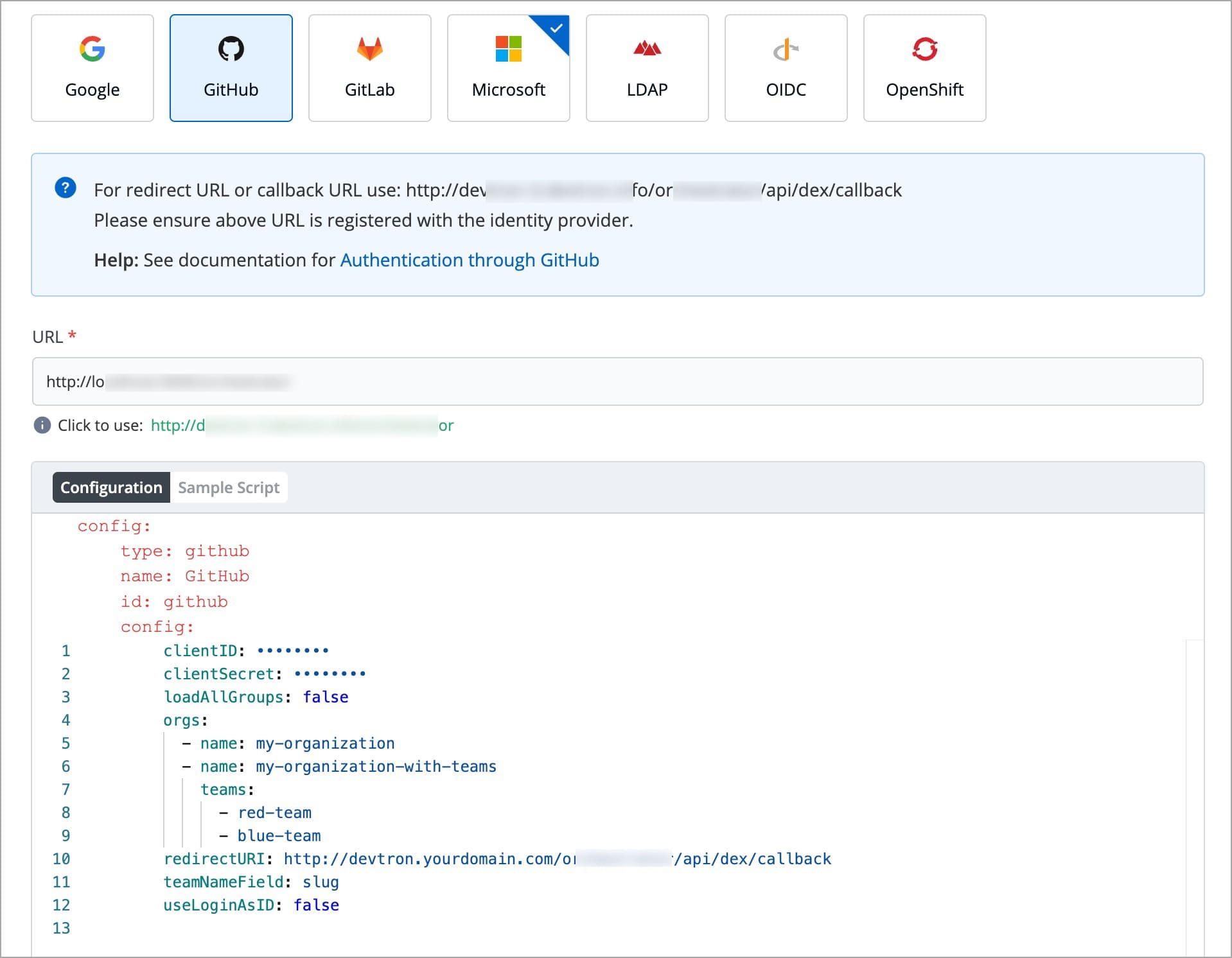 | ||
| Setting up GitHub SSO enables you to authenticate using your GitHub account, ensuring secure access to Devtron without the need for passwords. This document provides you step-by-step instructions on setting up GitHub SSO in Devtron. | ||
|
|
||
| --- | ||
|
|
||
| ## Values You Would Require at SSO Provider | ||
| ## Prerequisites | ||
|
|
||
| Devtron provides a sample configuration out of the box. There are some values that you need to either get from your SSO provider or give to your SSO provider. | ||
| To configure GitHub SSO in Devtron, you need: | ||
|
|
||
| ### Values to Fetch | ||
| * Super Admin permission | ||
| * Only a [Super-Admin](../user-access.md) in Devtron can configure SSO. However, you can use the [Admin credentials](../../../../setup/install/install-devtron-with-cicd.md) provided during the initial setup, if you’re setting up Devtron for the first time. | ||
| * A GitHub account to create and manage OAuth credentials. If you do not have a GitHub account, you must create it first on GitHub. | ||
| * [Host URL](../../host-url.md) configured on the Host URL screen (**Global Configurations** → **Host URL**). | ||
|
|
||
| * clientID | ||
| --- | ||
|
|
||
| ## Get the redirectURI from Devtron | ||
|
|
||
| * clientSecret | ||
| Getting the redirectURI from Devtron is a crucial component of the authentication process. It acts as an endpoint to which you are redirected after successful authentication. Follow the below instructions to get the redirectURI: | ||
|
|
||
|  | ||
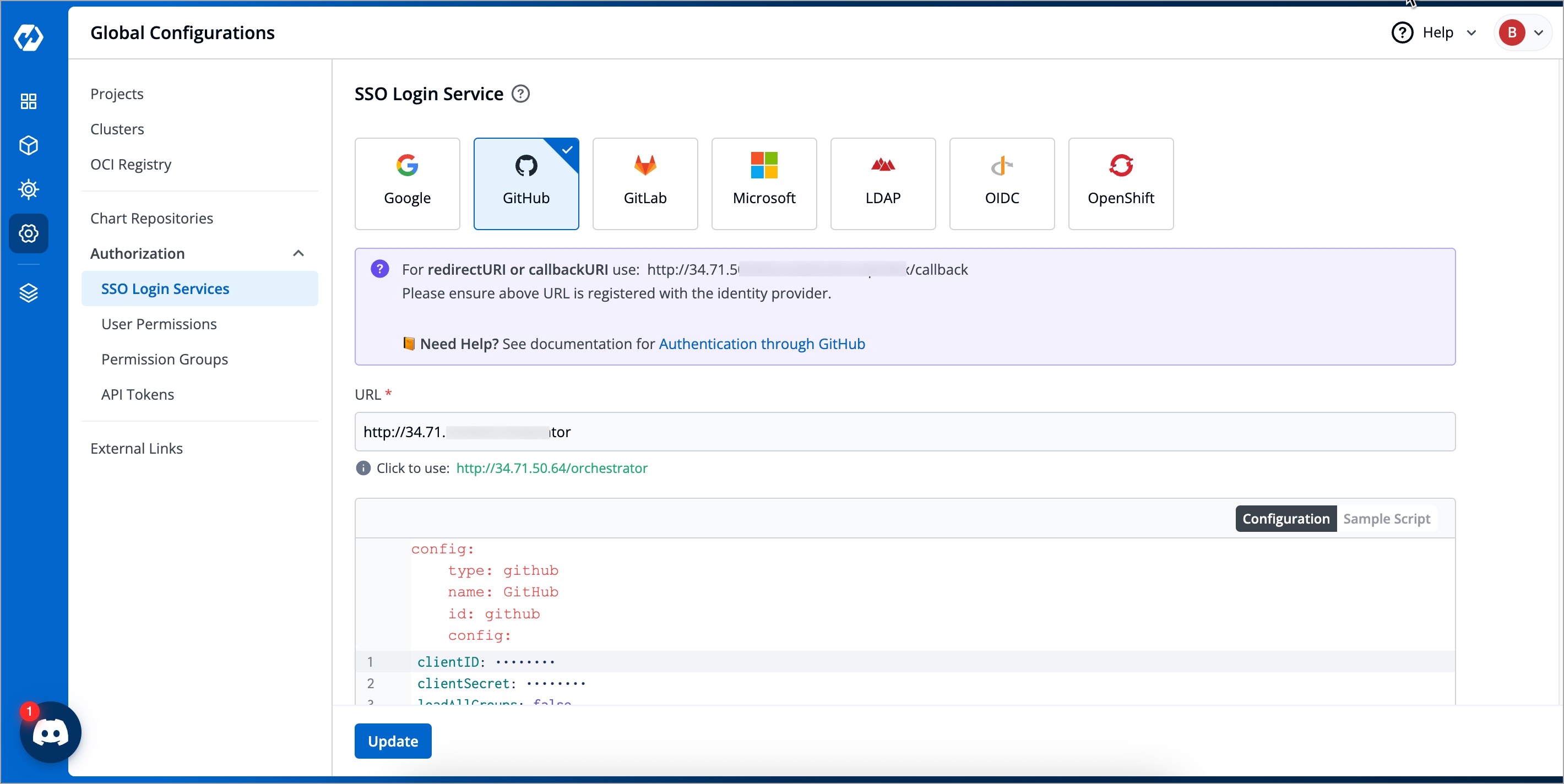
| 1. Navigate to **Global Configurations** → **Authorization** → **SSO Login Services**. The SSO Login Service page is displayed. | ||
|
|
||
| ### Values to Provide | ||
|  | ||
|
|
||
| * redirectURI (provided in SSO Login Services by Devtron) | ||
| 2. Select **GitHub** from the list of available SSO login services. | ||
|
|
||
| 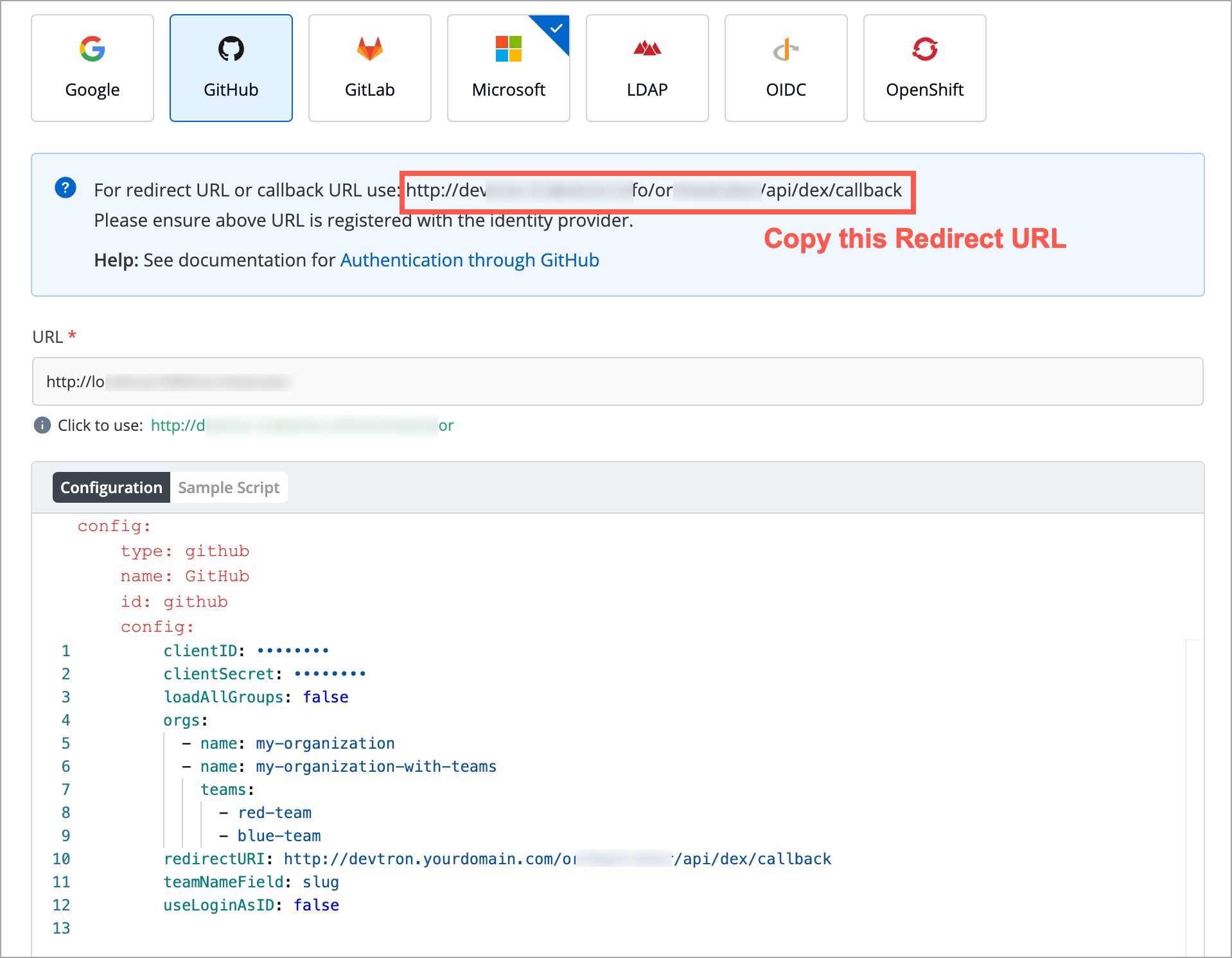 | ||
| 3. Click the URL suggested in green color next to the **Click to use** label to update the **URL** field. Update the **URL** field only if the host URL displayed in the **URL** field is incorrect. | ||
|
|
||
|  | ||
| 4. Click the **Update** button. | ||
|
|
||
| When you populate the Host URL in the **URL** field, the redirectURI (or callbackURI) is updated automatically in the purple block displayed at the top of the SSO Login Service screen. This redirectURI is essential, as it is required while setting up the OAuth credentials in GitHub. | ||
|
|
||
| --- | ||
|
|
||
| ## Reference | ||
| ## Configuring OAuth in GitHub | ||
|
|
||
| Open Authentication (OAuth) allows you to authorize one application to sign in to another without the need for passwords. Configuring OAuth credentials in GitHub involves creating a GitHub OAuth Client ID and Client Secret, which will then be used in Devtron for authentication. | ||
|
|
||
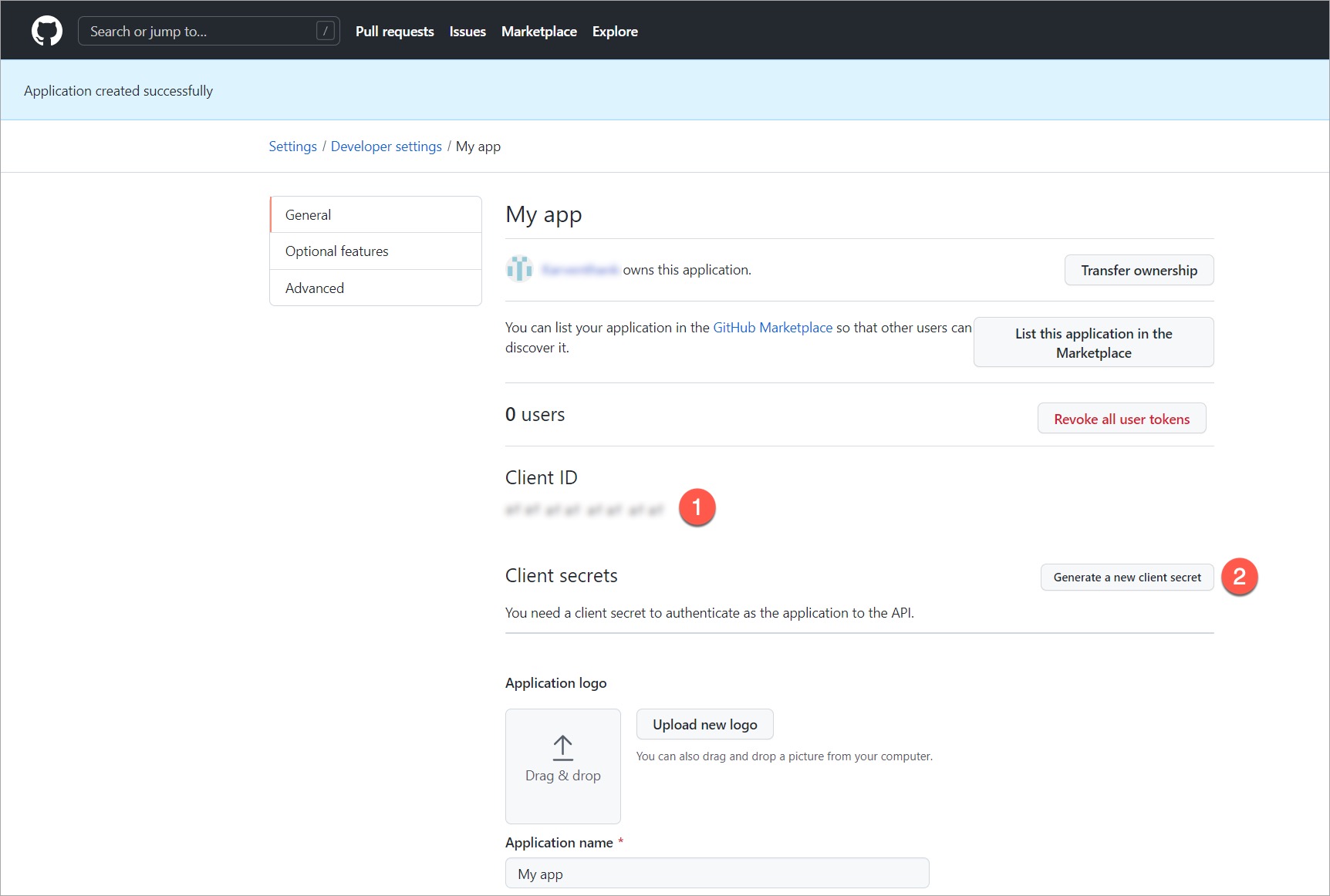
| 1. Navigate to **GitHub** → **Profile** → **Settings** → **Developer settings** → **OAuth Apps**. | ||
|
|
||
| If you do not already have an OAuth application created on GitHub, refer to [Creating an OAuth app](https://docs.github.com/en/apps/oauth-apps/building-oauth-apps/creating-an-oauth-app). If you already have an OAuth application on GitHub, follow the instructions below: | ||
|
|
||
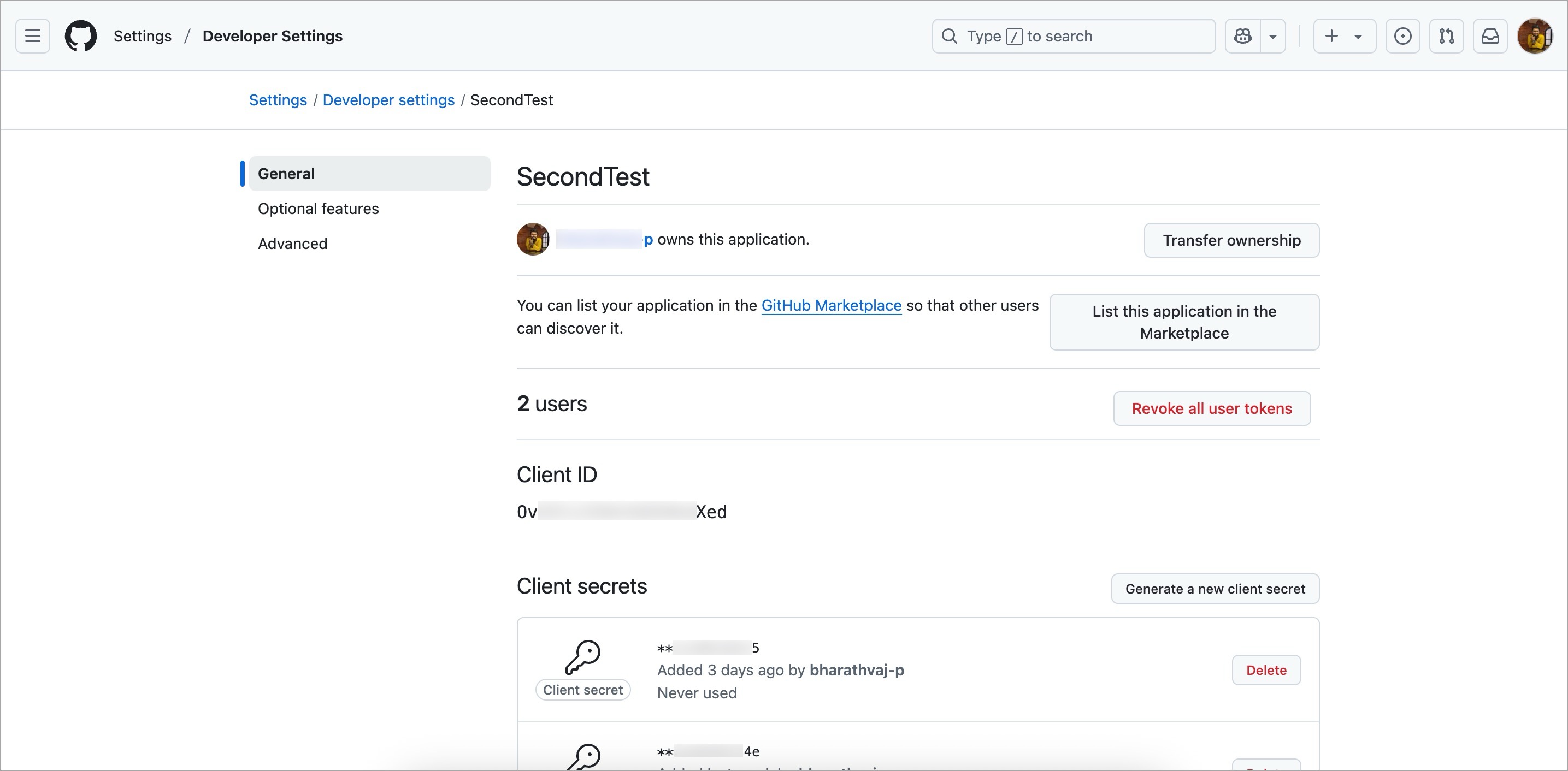
| 2. Select your preferred OAuth app and click **Edit**. | ||
|
|
||
|  | ||
|
|
||
| 3. Click the **Generate a new client secret** button to create a new client secret. The client secret is created and displayed in the **Client Secrets** section. The Client ID is created by default and can be found in the **Client ID** field. | ||
|
|
||
| 4. Update the **Homepage URL** field with the host URL configured in Devtron. | ||
|
|
||
| 5. Update the **Authorization callback URL** with the redirectURI created in Devtron. | ||
|
|
||
| 6. Click the **Update application** button. | ||
|
|
||
| --- | ||
|
|
||
| ## Configuring GitHub SSO in Devtron | ||
|
|
||
| To configure the GitHub SSO in Devtron, follow the below steps of instructions: | ||
|
|
||
| 1. Navigate back to the **SSO Login Services** screen in Devtron. | ||
|
|
||
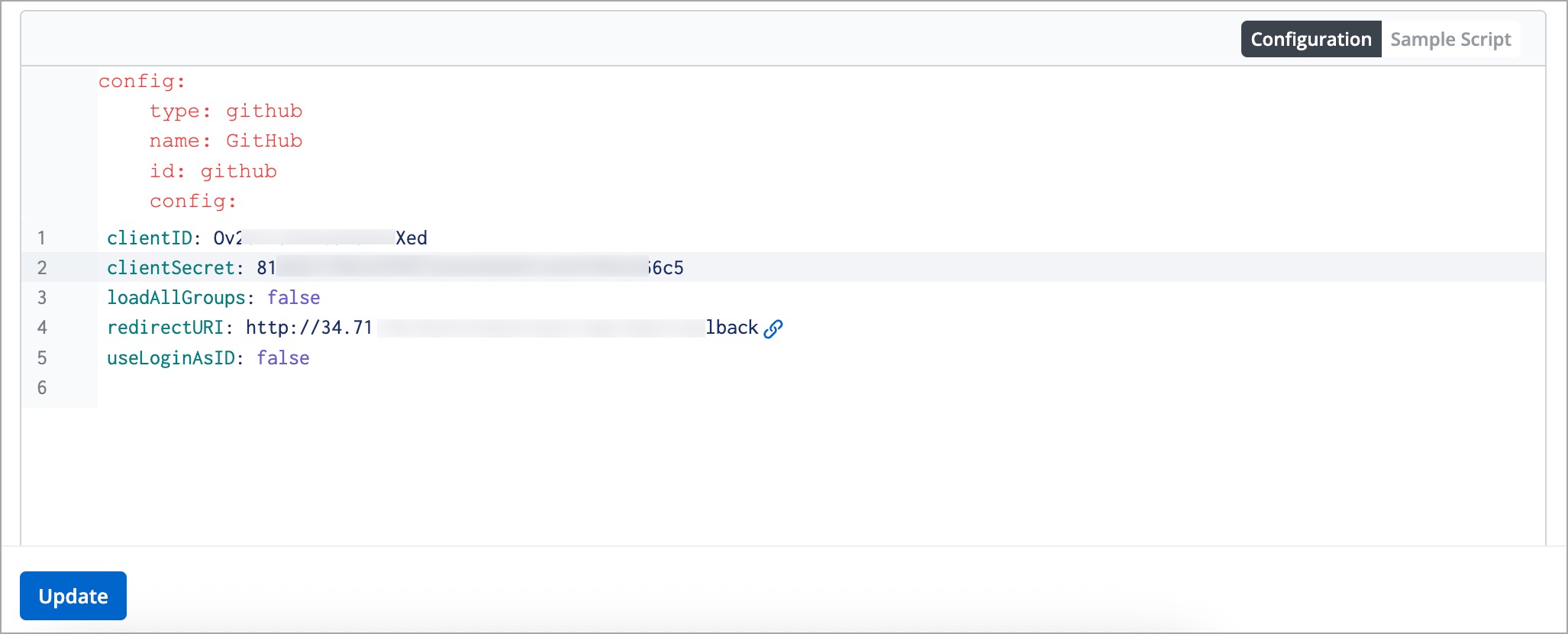
| 2. Select the **Configuration** section available below the **URL** field. | ||
|
|
||
|  | ||
|
|
||
| 3. Update the `clientID` attribute with the Client ID generated in the OAuth application on GitHub. | ||
|
|
||
| 4. Update the `clientSecret` attribute with the Client Secret generated in the OAuth application on GitHub. | ||
|
|
||
| 5. Update the `redirectURI` attribute with the `redirectURI` configured earlier. | ||
|
|
||
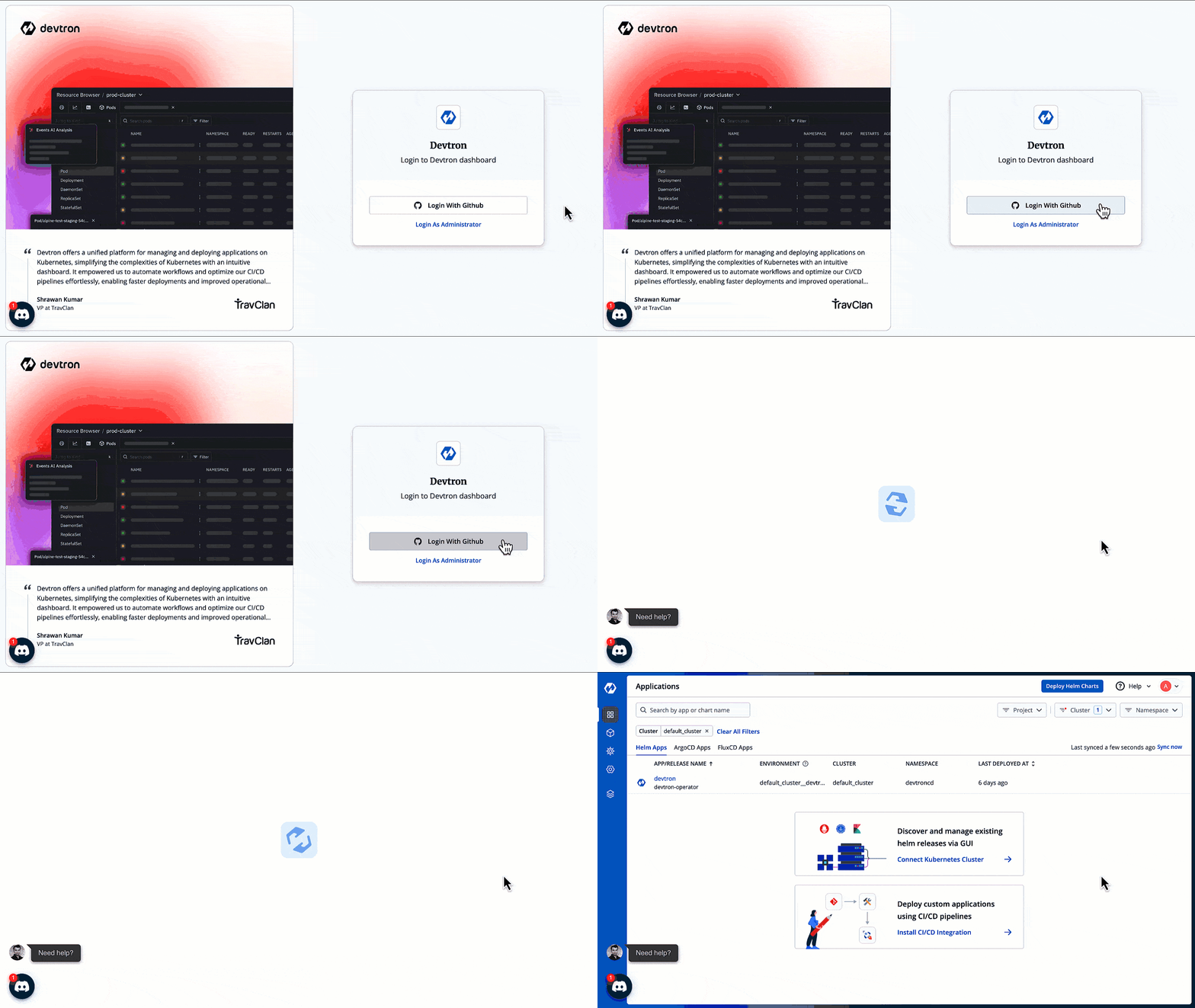
| 6. Click **Update** to save the configuration. GitHub SSO is now successfully configured. | ||
|
|
||
|  | ||
|
|
||
| --- | ||
bharathvaj-p marked this conversation as resolved.
Show resolved
Hide resolved
|
||
|
|
||
| * [View GitHub Documentation](https://docs.github.com/en/apps/oauth-apps/building-oauth-apps/creating-an-oauth-app) | ||
| {% hint style="warning" %} | ||
|
|
||
| * [View Dex IdP Documentation](https://dexidp.io/docs/connectors/github/) | ||
| ### Important: Enable User Access After SSO Setup | ||
|
|
||
| Although GitHub SSO is now configured, you will not be able to sign in with GitHub unless you add yourself as a user with the necessary permissions and manage other user permissions as well in Devtron. For detailed steps on managing user permissions, refer to the [User Permissions Documentation](../user-access.md). | ||
|
|
||
| {% endhint %} | ||
Add this suggestion to a batch that can be applied as a single commit.
This suggestion is invalid because no changes were made to the code.
Suggestions cannot be applied while the pull request is closed.
Suggestions cannot be applied while viewing a subset of changes.
Only one suggestion per line can be applied in a batch.
Add this suggestion to a batch that can be applied as a single commit.
Applying suggestions on deleted lines is not supported.
You must change the existing code in this line in order to create a valid suggestion.
Outdated suggestions cannot be applied.
This suggestion has been applied or marked resolved.
Suggestions cannot be applied from pending reviews.
Suggestions cannot be applied on multi-line comments.
Suggestions cannot be applied while the pull request is queued to merge.
Suggestion cannot be applied right now. Please check back later.
Uh oh!
There was an error while loading. Please reload this page.